How do I work through a path?
Open the path from My paths, unfold each step in order, and tick it done. Plays finish when you run them, checkpoints when you answer every question.
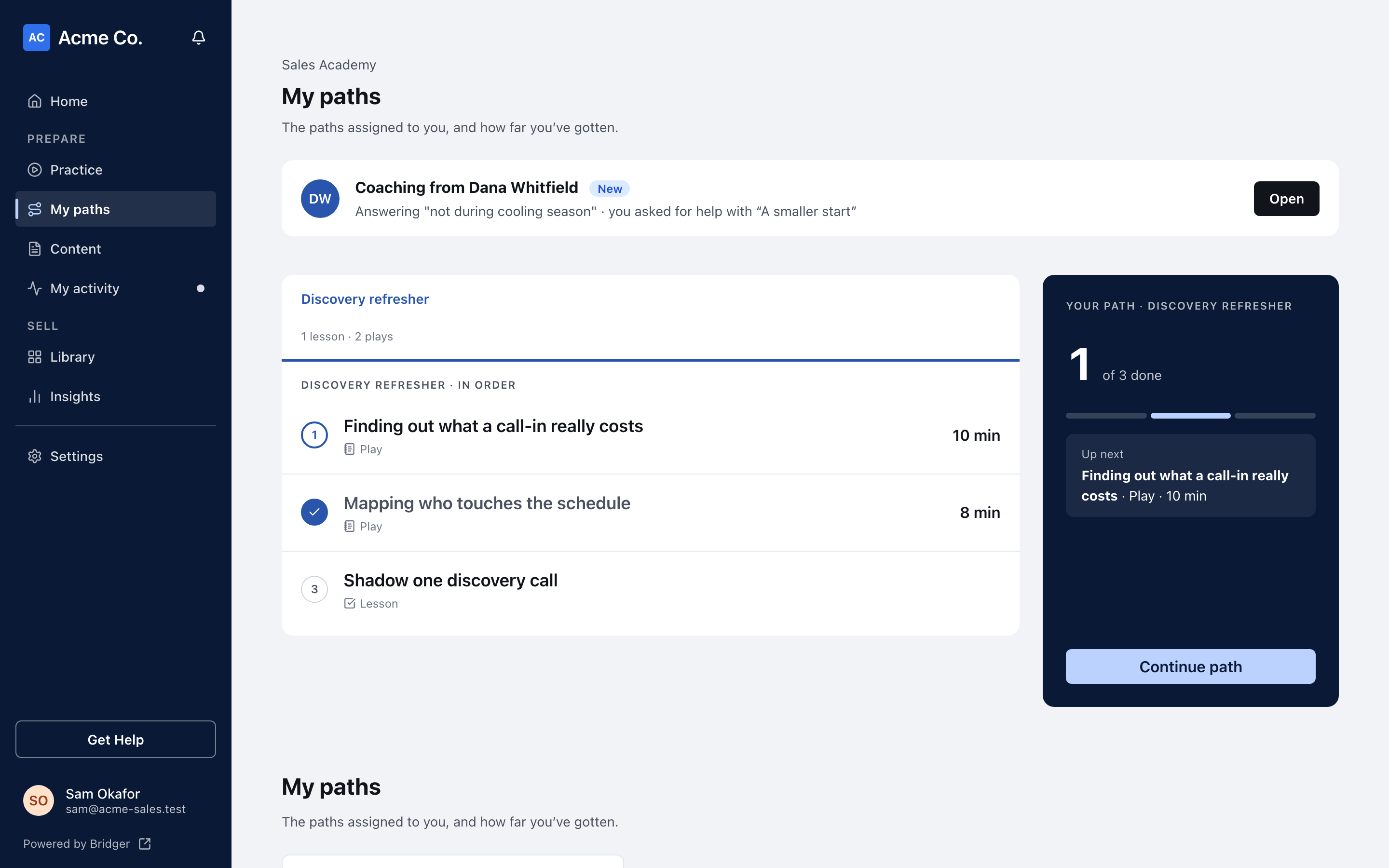
Click My paths under Prepare in the sidebar, pick the path and click Continue path. The path opens full screen with every step listed in order. Click a step to unfold it, do what it asks, and tick its box on the right. A play is done when you run it, and a checkpoint is done when you have answered every question.
How do I open a path?
- Click My paths under Prepare in the sidebar. On a phone, tap My paths at the top of the Shadowpitch page.
- Each path you are on shows as a tab with its lesson and play counts.
- Pick a path. The panel on the right shows how many steps you have done and what is Up next.
- Click Continue path. Once every step is done, the same button reads Look back through it.
You can also click any step in the list to open the path on that step, or click a path card under My paths.
A path with section headings is folded by day. The day you are on is open and marked You're here; a finished day shows a tick, and a later one shows how many steps it has. Click a day's heading to open or close it.
Your own paths come first. After them, any path your team uses that you are not on shows as a tab with a lock and Not on your plan. Pick it to see how long it is and its first day, then click Ask for access and your coaches get an email asking them to add you.
If My paths says No paths yet, you are not on a path. Click Ask for a path in the panel and your coaches get an email asking them for one. See What if I don't have a path yet?
Each step in the list shows its title and, under it, its type: a lesson also lists what it holds (a video, an image, a document), and a checkpoint, shaded apart from the other steps, shows how many questions it has. Once you have taken a checkpoint, the row shows your best score, like Best 4/5. A step's time estimate sits on the right, or a lock if it is not open yet.
What is on the path screen?
| Where | What it shows |
|---|---|
| Top bar | Step 3 of 12 · Lesson (the step you have open), how many steps are done, Leave, and Next step |
| Left | The path's name and description, Steps unlock in order if your manager turned that on, and who set it up |
| Middle | Every step, in order, grouped under section headings |
| Right | Stuck on something?, Practice what you just learned and Keep handy |
The first time you open a path, every step is folded so you can see the whole thing before you start; the step to begin with has a small bouncing arrow. After that, the path opens on the step you are up to.
Next step unfolds the next step you have not done. Leave takes you back to the Practice page.
What kinds of step are there?
| Step | What you do |
|---|---|
| Lesson | Read it in place. A lesson can hold videos that play in place, images, uploaded PDFs that open in a viewer, and Portal projects with Open full screen. Anything else opens in a new tab. |
| Video | Plays in place when you unfold it. A link under it opens it on the video site. |
| Play | Click Practice it to run the play. When you finish, you come back to the path. |
| Checkpoint | A few multiple-choice questions, answered in place. See How do checkpoints work? |
| Other content | Click Open ↗ to open a deck, document or link in a new tab. |
How do I mark a step done?
Each step has a round box on the far right.
- For a lesson or a piece of content, click the box yourself. Its label is Mark done; click it again to Mark as not done. Ticking a step folds it and unfolds the next one.
- For a play, the box fills in on its own the first time you run the play through to its review.
- For a checkpoint, the box fills in once you have answered every question, right or wrong.
Opening something from inside a path does not tick it for you: the path asks you to say when you have taken it in. How is a step or path marked complete? has every rule.
Why is a step locked?
If your manager set the path to unlock in order, the left column says Steps unlock in order and a step after one you have not done shows a lock. Finish the steps before it and it opens.
Plays are the exception. A play is never locked and never holds up the steps after it, so you can practice whenever you like.
What do the due dates mean?
Some paths put a date beside a section heading: Due Thu, Oct 9, Due today, or Was due Thu, Oct 9. Once every step in the section is done it reads Done.
- The date counts working days, Monday to Friday, from the day you were put on the path. Day 1 is that day, or the Monday after if it was a weekend. Holidays are not skipped.
- Dates are calendar days in UTC, so they do not shift with your time zone.
- A due date is a guide. Nothing locks when it passes, and it is never shown as an error.
Who do I ask if I'm stuck?
The Stuck on something? card names a coach. Click the button with their name on it (Ask Jordan, say) and your email app opens a message to them, with the path and the step you are on in the subject line. Usually this is the person your manager chose for the path; otherwise it is whoever set the path up, or another coach on your team.
Practice what you just learned lists plays that point at what this path teaches. Keep handy collects the decks, links and customer stories this path's plays cite.
What happens when I finish?
When you tick the last step, confetti fires, the left column says Path complete, and the top bar's button becomes Done. The path stays under My paths so you can come back to it.
If the path offers a certification, a Certification card sits below the last step. See How do I get certified on a path?
This did not answer your question? Email hello@bridgercreative.com.